Zoom Desktop App Self-Tutorial
- Go to https://itservices.usc.edu/zoom/
- Scroll down to the following section, click on “Getting Started on Windows and Mac” which will direct you to the following web page
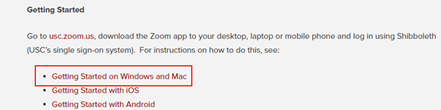
3. Scroll down to the following section, click on ‘Zoom desktop client (Windows or Mac)’

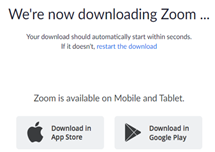
- Zoom will start downloading as shown in image below
5. Click on downloaded Zoom installer and let application run
Firefox installer location:
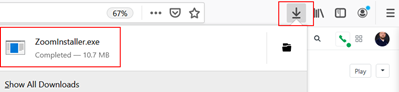
Chrome installer location:

- Once the application has been downloaded and installed, click ‘Sign In’

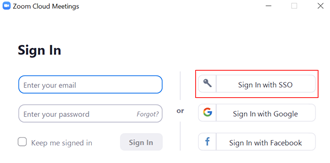
7. Click 'Sign In with SSO'
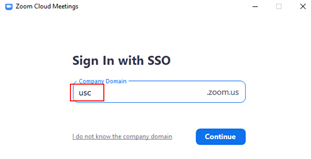
8. Enter 'USC' as Company Domain and click 'Continue'
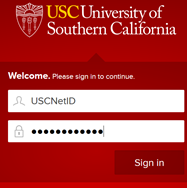
9. Sign in with your USC NetID credentials
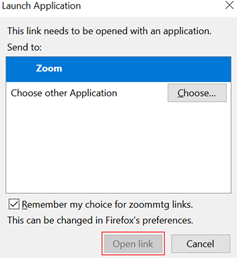
10. Click ‘Zoom’ and click ‘Open link’
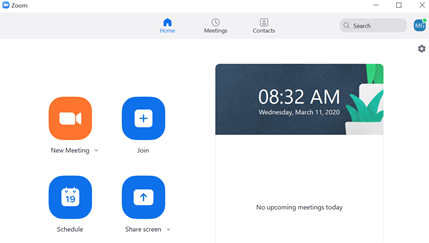
11. You are now connected to Zoom Desktop App
0 Comments